Data Management & Deletion
We believe you should have complete control over your baking library and personal details. Below are the steps to delete individual items, reset your database, or delete your cloud account.
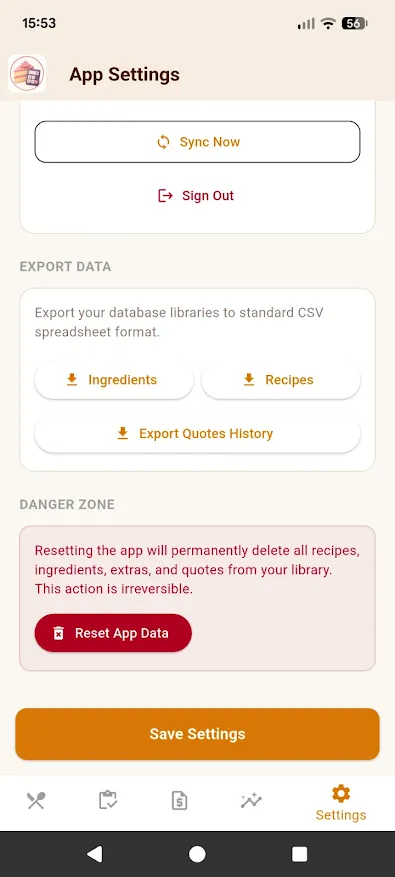
Danger Zone
Wipe Local & Cloud Database (Reset App Data)
If you want to clear your local database and reset your app entirely without deleting your profile login:
- Go to the bottom navigation bar and tap the **Settings** gear icon.
- Scroll down to the **Danger Zone** section.
- Tap the red **Reset App Data** button.
- Confirm the action. All recipes, ingredients, quotes, and extras will be wiped permanently.
Danger Zone
Delete Entire User Account
To delete your account authentication profile, name, email address, and all synced data permanently from our servers:
- Open the **Settings** screen in the Application.
- Under your account profile details, select **Delete Account**.
- Confirm the deletion. Your profile will be wiped instantly from our systems.
Delete Individual Recipes
If you want to clean up your library by removing specific recipes without wiping your entire catalog:
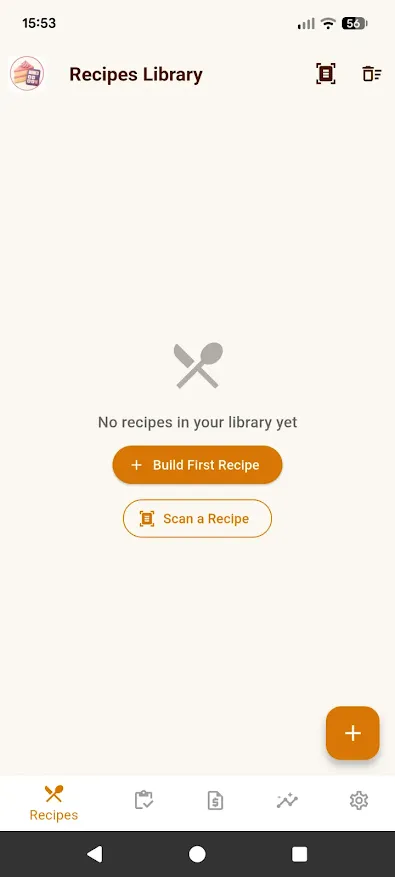
- Go to the **Recipes** tab on the navigation bar.
- To delete directly, swipe left on the recipe card you want to remove.
- Alternatively, tap to open the recipe details, tap the **Trash Can** icon at the top right, and confirm the deletion.
Wipe Data After Uninstalling (Email Request)
If you have already deleted the app from your device and wish to request manual removal of your synced data and account details, please copy the template below and send it to our support address.
To: marnistek@gmail.com
Subject: Price My Cake - Data Deletion Request
Please delete all my account information and synced databases associated with the Application:
- Email address: [Your Account Email Address]
- Name: [Your Name]
I understand that this action is permanent and my recipe databases cannot be restored.